Share your booking link, QR code and website booking button
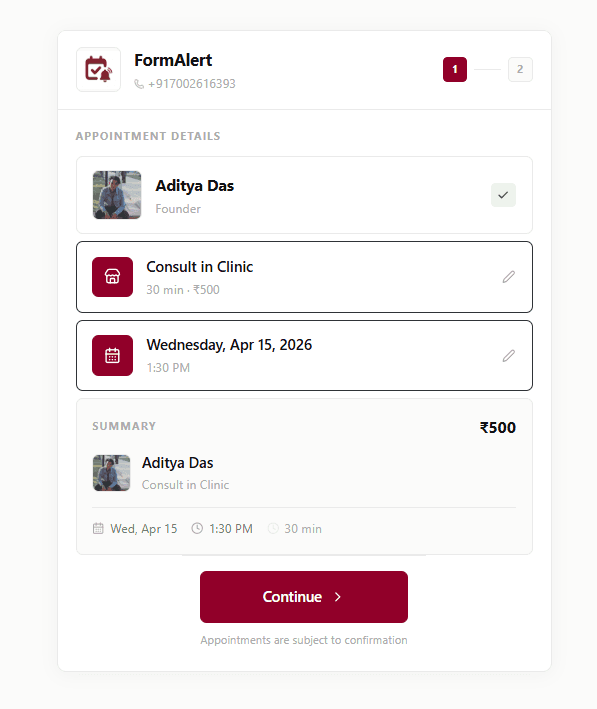
Your booking link, QR code and website booking form all open the same booking page. Patients pick the doctor, the service and a time, and the appointment lands in your list.
Get your link, QR code and website form
- 1
Open Share
In Settings, open "Share". You'll see three things: Booking form, Queue display and Patient portal.
- 2
Copy your booking link
Under Booking form, the Link tab shows your link. Press copy. This is the link for your Google profile, your website and your WhatsApp status.
- 3
Download your QR code
Open the QR code tab and download it. Print it and put it at your front desk, on your notice board and on your prescription pad.
- 4
Add booking to your website
Open the Embed tab, copy the one line of code, and paste it into your website where you want the booking form. Your web person can do this in a minute.
Your links
| Link | What it opens |
|---|---|
| formalert.in/book/your-clinic | Your booking page. |
| your-clinic.formalert.in/book | The same booking page, shorter to type. |
| your-clinic.formalert.in | Your live queue screen, with a Book Appointment / Get Token Number button. |
| your-clinic.formalert.in/patient-portal | The patient portal, where patients see their appointments, bills and prescriptions. |
"your-clinic" is the booking link name you chose in Settings.
A link for one doctor or one service
Use "Pre-select doctor" and "Pre-select service" on the Share page to make a link that skips straight to that doctor or service. Handy for a doctor's own Instagram, or a link just for follow-ups.
Website booking
The embed code is a small script that shows your FormAlert booking form inside your own website. It works on WordPress, Wix and plain HTML sites. If you'd rather not touch your site, just add a "Book appointment" button that opens your booking link.