Set up your clinic profile and booking rules
Settings is where your clinic's details, your booking link name and your booking rules live. Fill it in once and patients see the right clinic, the right link and the right slots.
Set up your clinic
- 1
Open Settings
Click Settings in the sidebar. The page is a set of cards.
- 2
Fill in "Business profile"
Add your logo, clinic name, specialty, address, website and a short description, then press "Save profile".
- 3
Add your private phone
"Private phone" is the number FormAlert alerts when a new booking comes in or a WhatsApp chat needs a person. Patients never see it.
- 4
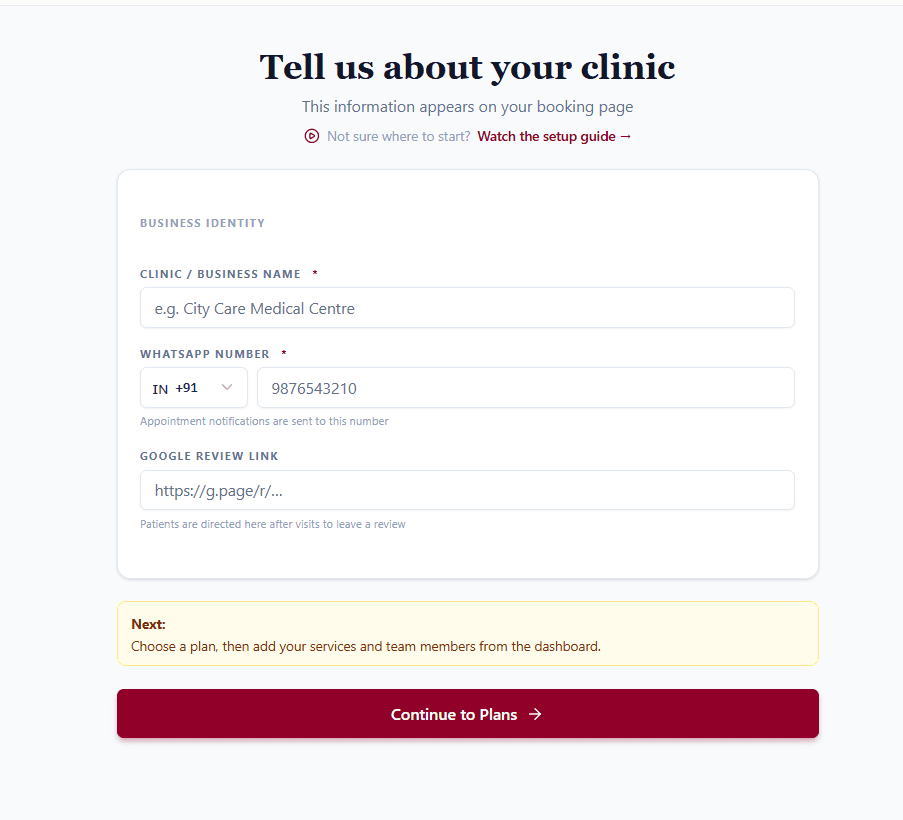
Paste your Google review link
This is the link FormAlert sends in every review request. Without it, review requests can't go out.
- 5
Choose your booking link name
"Booking URL slug" is the end of your link: formalert.in/book/your-clinic. Keep it short and close to your clinic's name.
- 6
Set your booking rules
In "Booking rules", set the appointment length, how far ahead patients can book, the notice you need, and whether online bookings confirm themselves. Press "Save rules".
Choose what the booking form asks
The Booking form card decides what patients fill in when they book. Full name and phone are always asked. You can show or require:
- Email address
- Date & time — turn this off and patients get a queue token for the day instead of picking a time. Good for walk-in style clinics.
- Your own questions — for example "Reason for visit" or a report upload.
You can also set your booking page colours here.
Booking rules, explained
| Rule | What it does |
|---|---|
| Appointment duration | The default length of a slot. |
| Booking window | How many days ahead patients can book. |
| Booking cutoff | How many hours' notice you need to book, cancel or move a slot. |
| Buffer between slots | Gap between appointments, for prep. |
| Auto-confirm online bookings | On: bookings confirm straight away. Off: you press Confirm on each one. |
| Let patients manage their own bookings | On by default. Patients can cancel or ask for a new time from their WhatsApp message. |
Other cards in Settings
- Email notifications — turn booking emails on or off.
- Plan & credits — your plan and credit balance.
- Team — a summary; "Manage" opens the Team page.
- Account & security — your name, password, sign out.
Doctors and staff only see their own account settings.