Reply to patients from the WhatsApp inbox
The WhatsApp inbox is your clinic's WhatsApp, inside FormAlert. Your whole team can answer patients from one place, next to each patient's appointments.
Reply to a patient
Click WhatsApp in the sidebar and open a chat. Type in the box and send. Use "Quick replies" for answers you send often, and the paperclip to send a file. Search by name or number at the top of the list.
The chat menu
| Menu item | What it does |
|---|---|
| View Appointment Details | Opens the patient's appointment. |
| Start Booking Flow | Sends the patient the booking form inside WhatsApp. |
| Pause Assistant / Hand Back to Assistant | Stop the automatic replies so you can answer yourself, then hand it back. |
| Add/Edit Contact Name | Give the chat a proper name. |
| Assign to Staff | Admins: give the chat to one person on your team. |
| Clear History | Admins: clears the chat in FormAlert. |
The 24-hour window
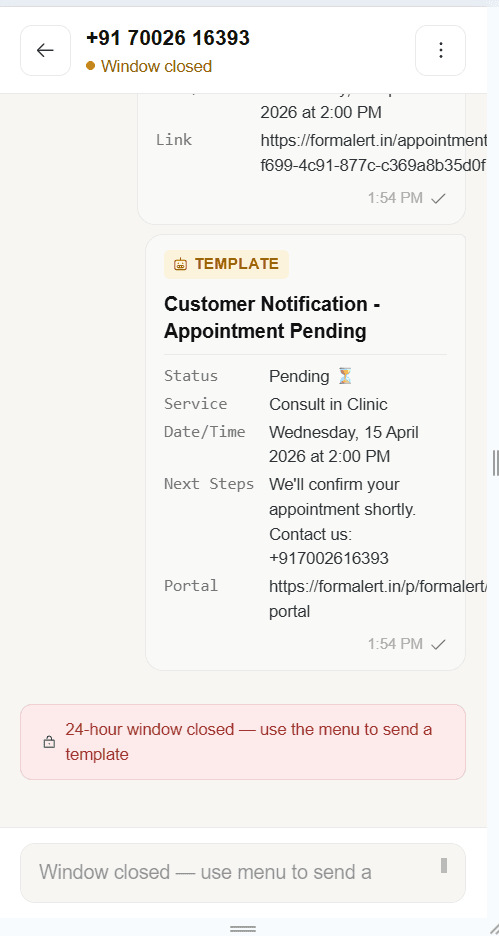
WhatsApp lets a business send free-form messages only within 24 hours of the patient's last message. After that the chat says "24-hour window closed" and you can't type.
To reach them again, go back to the chat list and press Send welcome message, enter their number, and send. It goes out as an approved template with a Book Appointment button. When they reply, the window opens again.
Split the work
Admins can assign chats to front desk staff. Staff only see the chats assigned to them, so two people never answer the same patient. See add your team.