Run your clinic queue and waiting-room screen
Every confirmed patient gets a token. The live queue on your dashboard shows who's next, and the waiting-room screen shows patients the same thing — so nobody has to ask how long the wait is.
How tokens work
When an appointment is confirmed — online, on WhatsApp, or a walk-in — the patient gets a token number for that doctor, and it's in their WhatsApp confirmation. Every booking for the day is in one queue, whichever way it came in.
Run the live queue
The Live Queue is on your Dashboard. It groups the day into Requested, Confirmed and Completed. Pick a date or a doctor at the top.
- Confirm a requested booking to put it in the queue.
- Complete when the visit is over. The review request goes out.
- No-show if they didn't come.
- Use the up and down arrows to change the order.
Doctors see Your Queue with a Now Serving and Up next panel, so they can call the next patient without asking the front desk.
Pause the queue
Doctor called into an emergency? Press Pause. The queue screen shows the doctor isn't available, so patients know why it isn't moving. Press Resume when they're back.
Put the queue on a TV
- 1
Find your queue link
In Settings → Share, open "Queue display" and copy the link. It looks like your-clinic.formalert.in.
- 2
Open it on the TV or tablet
Open that link in the browser of a smart TV, a tablet, or a laptop plugged into a TV in your waiting room.
- 3
Make it full screen
It updates by itself as patients are completed. Nobody has to touch it.
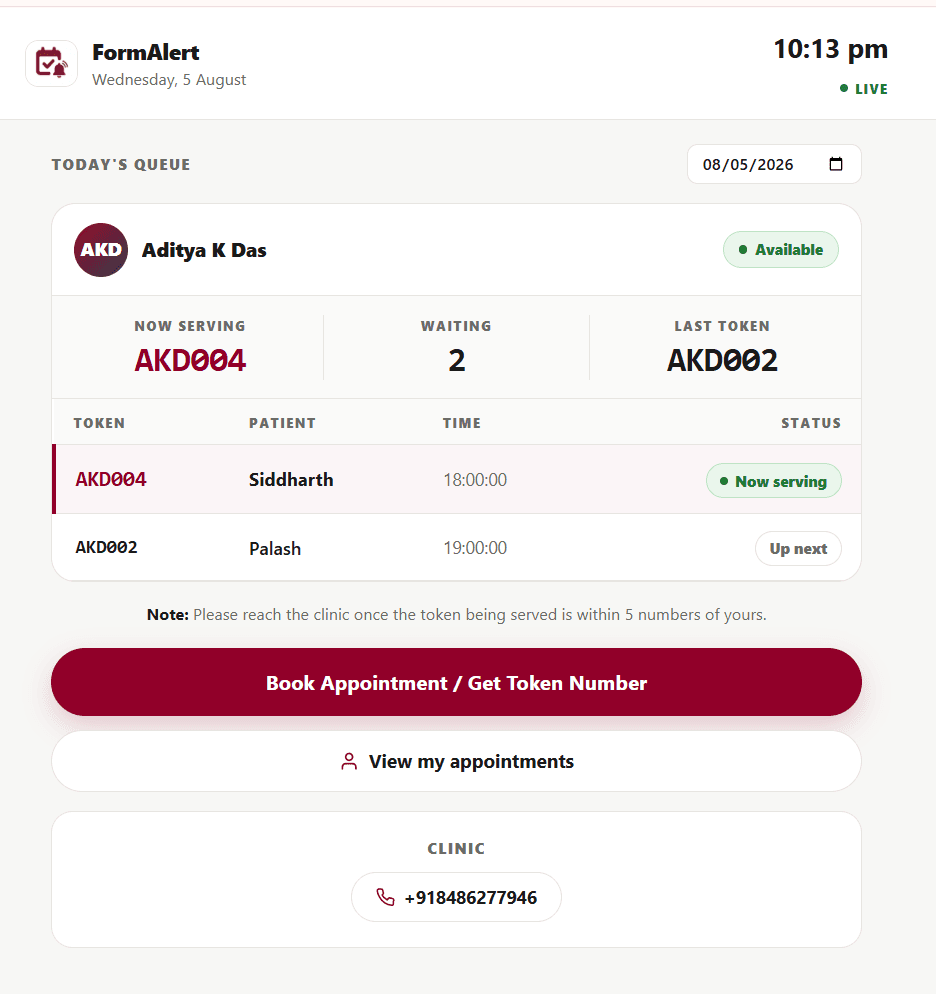
Patients can check from their phone
The same queue link works on a phone. Patients can see the token being served before they leave home, and walk-ins can press "Book Appointment / Get Token Number" to join. Patients see their own token and how many are ahead in the patient portal too.